

Mobile Gaming Lag Fix Guide: Reduce Ping, Boost FPS & Improve Performance
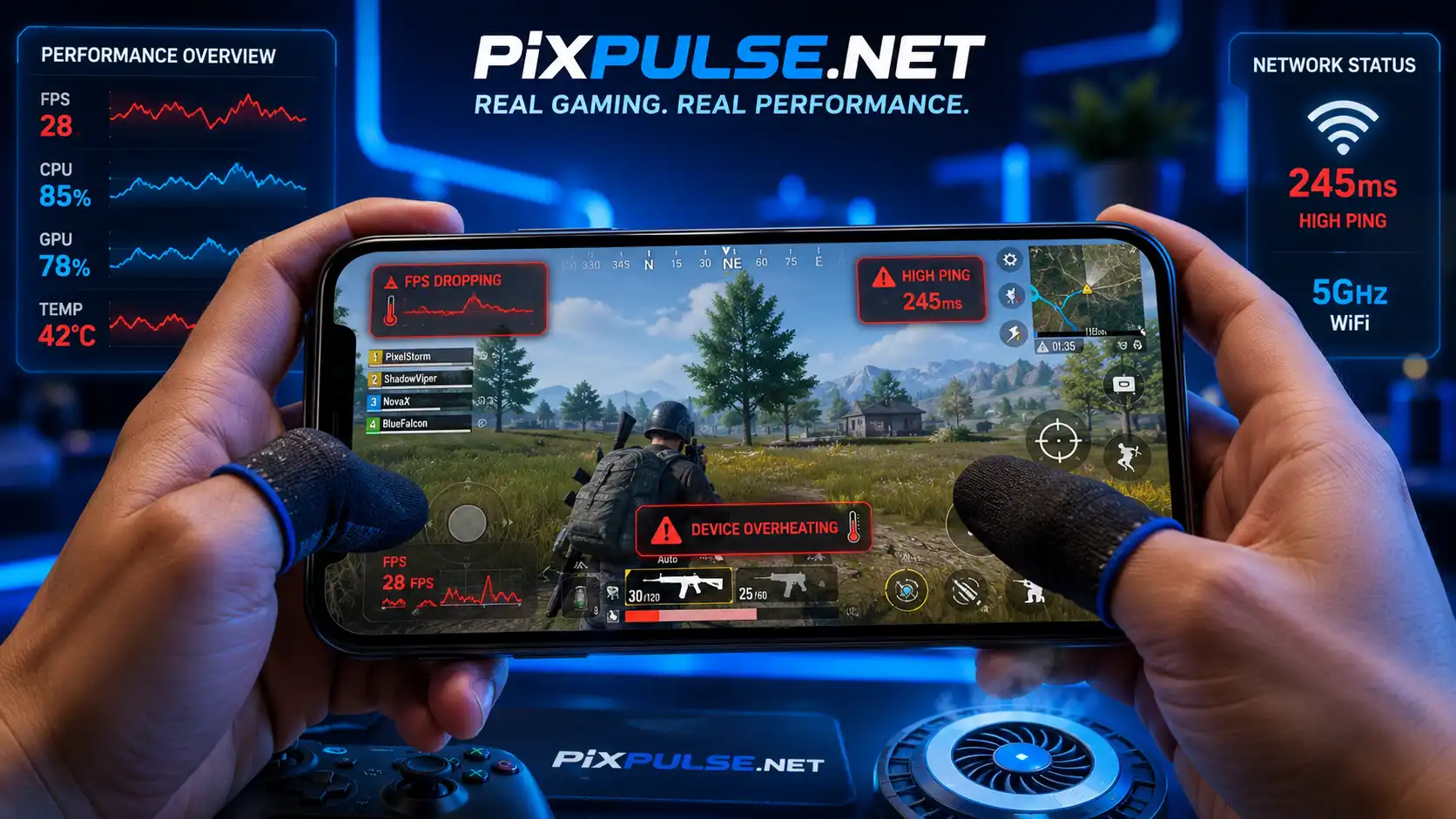
Mobile Gaming Lag Fix Guide Few things feel more frustrating than losing a match because your phone starts lagging during an important fight. One moment the game runs smoothly, and the next moment the FPS drops, touch response slows down, and the phone becomes too hot to hold comfortably. Many players face these issues while playing games like PUBG Mobile, Call of Duty: Mobile, Free Fire MAX, and Genshin Impact. High ping, overheating, unstable FPS, and input delay can quickly ruin the gaming experience, especially on budget and mid-range phones.
After testing gaming performance across Android devices and older iPhones, one thing became clear: most mobile gaming lag problems come from poor optimization instead of weak hardware alone. Simple changes like lowering graphics settings, reducing background activity, improving cooling, and using stable internet often improve gameplay more than many players expect. This mobile gaming lag fix guide focuses on practical fixes that actually help reduce FPS drops, lower ping, improve touch response, and make mobile games run smoother on both Android and iPhone devices.
🎮 Quick Gaming Lag Fix Takeaways
- Use low or medium graphics settings for stable FPS.
- Keep at least 15% to 20% storage free.
- Enable Gaming Mode before playing.
- Avoid charging while gaming to reduce overheating.
- Use stable 5GHz WiFi for lower ping.
- Close background apps before launching games.
- Lower brightness to reduce heat and battery drain.
📌 Why Mobile Games Lag
Mobile games lag because phones handle many tasks at the same time. Heavy graphics, background apps, unstable internet, and overheating all affect gaming performance.
Here are the most common causes of mobile gaming lag.
🎯 FPS Drops
FPS means frames per second. Higher FPS creates smoother gameplay.
When FPS drops:
- gameplay feels choppy
- aiming becomes harder
- movement feels delayed
- animations freeze
Low FPS usually happens because:
- graphics settings are too high
- the GPU becomes overloaded
- background apps consume RAM
- the phone overheats

🌐 Network Lag
Network lag differs from FPS lag.
High ping can cause:
- delayed movement
- rubber banding
- delayed shots
- random disconnects
This problem usually comes from:
- weak WiFi
- unstable mobile data
- crowded networks
- server distance
👆 Touch Delay
Touch delay happens when the screen reacts slowly during gameplay.
Common causes include:
- overheating
- battery saver mode
- low touch sampling rate
- background activity
Competitive games feel much harder when touch delay increases.
🔥 Thermal Throttling
Phones reduce performance when temperature rises too high. This process is called thermal throttling.
When thermal throttling starts:
- FPS drops suddenly
- games stutter
- CPU speed decreases
- GPU performance becomes unstable
Heat remains one of the biggest reasons for mobile gaming lag.

💾 Low Storage Space
Phones need free storage for:
- cache files
- temporary game data
- updates
- texture loading
A nearly full phone often becomes slower during gaming sessions.
Keep at least 15% to 20% free storage for smoother performance.
| Problem | Possible Cause | Recommended Fix |
|---|---|---|
| FPS Drops | GPU overload or overheating | Lower graphics settings and improve cooling |
| High Ping | Weak or unstable internet | Use stable 5GHz WiFi |
| Touch Delay | Low refresh rate or overheating | Enable gaming mode and reduce heat |
| Stuttering | Background apps using RAM | Close unused apps |
🧠 What Is Frame Pacing?
Many players focus only on FPS, but frame pacing also affects gameplay smoothness.
Frame pacing controls how evenly frames appear on the screen. A game may show high FPS but still feel laggy if frames arrive unevenly.
Good frame pacing improves:
- camera movement
- aiming stability
- gameplay smoothness
- response consistency
Poor frame pacing usually happens because:
- the phone overheats
- FPS becomes unstable
- graphics settings are too high
- background apps interrupt rendering
⚡ Quick Fixes That Improve Mobile Gaming Performance Fast
These simple fixes improve gaming performance on most devices.
🔄 Restart Your Phone
Restarting clears temporary processes and refreshes RAM.
Do this before long gaming sessions.
❌ H3: Close Background Apps
Background apps consume RAM and CPU resources.
Close:
- social media apps
- video streaming apps
- unused browser tabs
- downloads
This helps games run more smoothly.
🧠 Why Background Processes Reduce Gaming Performance
Background apps continue using:
- RAM
- CPU resources
- battery power
- internet bandwidth
This reduces the resources available for games and can cause FPS drops or stuttering.
🎮 Enable Gaming Mode
Many phones include built-in gaming features.
Popular examples:
- Samsung Game Booster
- Xiaomi Game Turbo
- ASUS Game Genie
- OnePlus Gaming Mode
Gaming mode can:
- reduce notifications
- improve stability
- lower background activity
- stabilize FPS
🗑️ Clear Cache Files
Large cache files sometimes create performance problems.
To clear cache on Android:
- Open Settings
- Go to Apps
- Select the game
- Tap Storage
- Tap Clear Cache
Avoid clearing game data unless necessary.
📂 Free Up Storage Space
Delete:
- old videos
- duplicate files
- unused apps
- large downloads
More free storage improves loading speed and reduces lag.
📱 Mobile Gaming Lag Fix Guide for Low-End Phones
Budget phones struggle more with modern games because updates require more RAM, GPU power, and storage speed.
If your device has:
- 2GB RAM
- 3GB RAM
- 4GB RAM
focus on stable performance instead of maximum graphics.
⚙️ Best Low-End Gaming Settings
For smoother gameplay:
- use low graphics
- use medium FPS
- disable shadows
- disable anti-aliasing
- lower render distance
These settings reduce GPU load and overheating.
📦 Keep At Least 20% Storage Free
Low-end phones slow down faster when storage becomes full.
Delete:
- screenshots
- duplicate photos
- old downloads
- unused apps
Free storage helps reduce stuttering and slow loading.
📲 Use Lite Versions of Apps
Heavy apps running in the background reduce gaming performance.
Lite apps use less RAM and battery.
Examples include:
- Facebook Lite
- Messenger Lite
🛠️ How Phone Hardware Affects Gaming Performance
Gaming performance depends heavily on hardware optimization.
🧮 CPU Performance
The CPU handles:
- game logic
- enemy behavior
- physics systems
- background calculations
Weak CPUs often cause stuttering during heavy gameplay.
🎨 GPU Performance
The GPU renders:
- graphics
- textures
- shadows
- visual effects
High graphics settings increase GPU workload and reduce FPS stability.
🧠 RAM Usage
RAM stores active game data.
Low RAM can cause:
- app reloads
- freezing
- stuttering
- slower multitasking
Games like Genshin Impact require more RAM for smoother gameplay.
💽 Storage Speed
Storage speed affects:
- loading times
- texture streaming
- game updates
Phones with nearly full storage often become slower during gaming.
⚡ Faster Storage Helps Games Load Smoother
Phones with faster storage systems usually load textures and maps more quickly.
Older eMMC storage can feel slower than modern UFS storage during heavy games.
📉 Why Old Phones Sometimes Feel Slower
Older phones may become slower over time because:
- storage fills up
- apps become larger
- background processes increase
Keeping storage cleaner helps maintain smoother gaming performance.
🎨 Best Graphics Settings for Smooth Gameplay
Wrong graphics settings cause many FPS problems.
📉 Best Settings for Low-End Phones
For phones with 2GB to 4GB RAM:
- use low graphics
- use medium FPS
- disable shadows
- lower render distance
These settings reduce GPU pressure.
📈 Best Settings for Mid-Range Phones
For phones with 6GB to 8GB RAM:
- medium or high graphics
- high FPS mode
- balanced effects
- medium texture quality
This balance improves stability during long sessions.
🚀 Best Settings for Flagship Phones
Flagship phones handle higher settings better, but overheating still affects long gaming sessions.
For stable performance:
- avoid maximum brightness
- avoid charging while gaming
- balance FPS and graphics quality

| Phone Type | Graphics | FPS | Shadows | Best For |
|---|---|---|---|---|
| Low-End Phones | Low | Medium | Off | Stable gameplay |
| Mid-Range Phones | Medium | High | Medium | Balanced visuals |
| Flagship Phones | High | Ultra | High | Maximum quality |
🏆 Best FPS Settings for Competitive Mobile Gaming
Competitive players usually prefer performance over visual quality.
Lower graphics settings improve:
- aiming response
- touch accuracy
- frame stability
- enemy visibility
These settings work well in games like PUBG Mobile and Call of Duty: Mobile.
🌐 How to Reduce Ping in Mobile Games
Lower ping creates faster response time during online matches.
📶 Use 5GHz WiFi
5GHz WiFi usually provides:
- lower latency
- better stability
- less interference
Stay close to the router for stronger signal strength.
📡 Reduce WiFi Interference
Devices like:
- smart TVs
- Bluetooth accessories
- microwaves
- nearby routers
can weaken wireless stability.
Keeping the router away from interference sources can improve gaming stability.
🌍 Change DNS Settings
Reliable DNS servers can improve connection stability.
Popular options:
- Cloudflare DNS: 1.1.1.1
- Google DNS: 8.8.8.8
🚫 Reduce Network Traffic
Avoid:
- streaming videos
- large downloads
- software updates
- many connected devices
Heavy traffic increases ping spikes.
📡 Use Stable Mobile Data
Strong 4G or 5G connections sometimes perform better than weak WiFi.
Stable internet matters more than raw speed for gaming.
📊 Why Stable Ping Matters More Than Low Ping
A stable connection usually feels smoother than a connection with constant ping spikes.
Sudden latency changes can create:
- rubber banding
- delayed shots
- unstable movement
📍 Choose the Closest Game Server
Games usually perform better on nearby servers.
Playing on distant regions can increase:
- ping
- input delay
- rubber banding
Always select the closest available server when possible.

📦 What Is Packet Loss?
Packet loss happens when game data fails to reach the server correctly.
This can cause:
- delayed movement
- teleporting players
- unstable gameplay
- delayed shots
Even low ping feels bad when packet loss becomes high.
Packet loss usually happens because:
- unstable WiFi
- overloaded networks
- weak mobile signals
- router interference
📶 What Is Internet Jitter?
Jitter means sudden changes in network latency.
High jitter can cause:
- unstable gameplay
- inconsistent movement
- delayed actions
- lag spikes
Stable latency matters more than occasional fast speeds.
☁️ Cloud Gaming Needs Stable Internet
Cloud gaming services depend heavily on internet quality.
Platforms like:
- Xbox Cloud Gaming
- NVIDIA GeForce NOW
need:
- stable WiFi
- low latency
- consistent download speeds
For cloud gaming, internet quality matters more than phone hardware.
👆 How to Reduce Input Lag on Mobile Games
Input lag is the delay between touching the screen and seeing the action happen.
High input lag makes games feel slow and unresponsive.
⚡ Increase Touch Responsiveness
Phones with higher touch sampling rates react faster during gameplay.
Devices with:
- 120Hz displays
- gaming mode enabled
- higher touch sampling rates
usually feel smoother and more responsive.
🔕 Reduce Notification Interruptions
Notifications interrupt rendering and increase delay.
Enable:
- Do Not Disturb
- Focus Mode
- Gaming Mode
before competitive matches.
🎧 Avoid Bluetooth Delay
Wireless accessories sometimes increase input delay.
For competitive gaming:
- use stable Bluetooth devices
- update accessories regularly
- use wired audio if possible
📊 Use Game Dashboard Tools
Many Android phones now include Game Dashboard tools.
These features help:
- monitor FPS
- reduce interruptions
- optimize performance
- block notifications
📉 How to Stop FPS Drops While Gaming
FPS drops usually happen when the phone struggles under heavy load.
🎯 Lower GPU Load
Reduce:
- reflections
- shadows
- render resolution
- advanced effects
These settings heavily affect GPU performance.
🔋 Disable Battery Saver
Battery saver limits CPU and GPU speed.
Turn it off before gaming.
⚠️ Avoid Ultra Power Saving Modes
Ultra power saving modes aggressively reduce:
- CPU speed
- GPU performance
- background activity
These modes usually hurt gaming performance significantly.
🔄 Reduce Background Sync
Background syncing consumes system resources.
Pause:
- cloud backup
- app syncing
- auto updates
This improves gaming stability.
📺 Optimize Refresh Rate
90Hz and 120Hz displays feel smoother, but they also increase heat and battery usage.
If your phone struggles:
- lower graphics settings
- or lower refresh rate
Balance matters more than maximum settings.
🎥 Screen Recording Can Reduce FPS
Recording gameplay uses additional CPU and GPU resources.
On weaker phones, this may cause:
- FPS drops
- overheating
- battery drain
Lower recording quality if gameplay becomes unstable.
📱 Should You Use 90Hz or 120Hz for Gaming?
High refresh rate displays improve:
- smoothness
- response time
- motion clarity
However, higher refresh rates also:
- increase battery drain
- increase GPU load
- create more heat
Phones with weaker cooling systems may perform better with balanced settings instead of maximum refresh rates.
🔥 How to Stop Overheating While Gaming
Heat reduces gaming performance quickly.
⚡ Avoid Charging While Gaming
Charging creates additional heat.
This increases:
- FPS drops
- thermal throttling
- battery stress
📱 Remove Thick Phone Cases
Thick cases trap heat during long sessions.
Removing the case improves cooling.
🌡️ Lower Screen Brightness
High brightness increases:
- battery drain
- heat generation
Use moderate brightness during gaming.
☀️ Disable Auto Brightness During Gaming
Auto brightness constantly changes screen brightness during gameplay.
Manual brightness usually provides more stable visibility and fewer distractions.
❄️ Play in Cool Areas
Hot rooms increase overheating problems.
Cool environments help maintain stable performance longer.
🌡️ Avoid Extreme Phone Temperatures
Very high temperatures reduce:
- gaming stability
- battery health
- sustained FPS
If the phone becomes too hot to hold comfortably, take a short break before continuing gameplay.
🔋 Protect Battery Health During Gaming
To reduce long-term battery wear:
- avoid extreme heat
- avoid charging while gaming
- avoid full battery drain repeatedly
Better battery health helps maintain stable gaming performance over time.
🧊 Do Phone Cooling Fans Improve FPS?
Cooling fans help reduce thermal throttling during long gaming sessions.
Benefits include:
- lower phone temperatures
- more stable FPS
- reduced overheating
- better comfort during gameplay
Cooling accessories help most during:
- long ranked matches
- summer weather
- heavy games

⚙️ Best Android Settings for Gaming Performance
Android includes several useful optimization settings.
🎬 Reduce Animation Scale
Inside Developer Options, reduce:
- Window Animation Scale
- Transition Animation Scale
- Animator Duration Scale
This makes the phone feel faster.
🔄 Keep Software Updated
System updates often improve:
- GPU drivers
- thermal control
- gaming stability
Always update your phone and games regularly.
🔋 Check Adaptive Battery Settings
Some Android phones aggressively limit background performance to save battery.
Gaming mode usually reduces these restrictions during gameplay.
✈️ Airplane Mode Can Sometimes Improve Stability
For offline games, airplane mode can reduce:
- background syncing
- notifications
- unnecessary network activity
Keep airplane mode disabled for online games.
❌ Disable Unused Features
Turn off:
- NFC
- unused widgets
- unnecessary Bluetooth devices
- auto scanning features
This reduces background activity.
🍎 Best iPhone Settings for Gaming
iPhones also benefit from proper gaming optimization.
🔕 Reduce Background Activity
Disable:
- background app refresh
- auto downloads
- unnecessary notifications
This improves battery life and stability.
📲 Update iOS
Apple regularly improves gaming performance through iOS updates.
Updates often improve:
- thermal control
- frame stability
- GPU optimization
🎮 Use iPhone Game Mode
Newer iPhones include Game Mode features that improve responsiveness during gameplay.
This helps reduce interruptions during heavy games.
📺 Optimize ProMotion Displays
ProMotion displays support higher refresh rates for smoother gameplay.
Higher refresh rates may also increase:
- heat
- battery usage
Balance graphics settings carefully during long sessions.
🎯 Game-Specific Lag Fixes
Different games need different optimization settings.
🔫 PUBG Mobile Lag Fix
For smoother gameplay:
- use Smooth graphics
- enable Extreme FPS
- disable unnecessary effects
💥 Call of Duty: Mobile Lag Fix
Recommended settings:
- medium graphics
- max frame rate
- lower depth effects
🔥 Free Fire MAX Lag Fix
For budget phones:
- lower shadow quality
- disable HD textures
- use standard graphics
🌍 Genshin Impact Lag Fix
Genshin Impact places heavy load on both CPU and GPU.
For smoother gameplay:
- lower render resolution
- disable motion blur
- use 30 FPS on weaker devices
🧩 Why Some Games Lag After Major Updates
Modern games often rebuild shaders after large updates.
This can temporarily cause:
- FPS drops
- stuttering
- loading delays
Performance usually improves after several matches because the game finishes shader compilation in the background.
⚠️ Common Mistakes That Make Gaming Lag Worse
Many players accidentally reduce gaming performance.
Avoid these mistakes:
- charging while gaming
- filling storage completely
- using fake RAM cleaner apps
- using maximum graphics on weak phones
- ignoring overheating
- keeping too many apps open
Built-in gaming modes usually work better than random booster apps.
🚫 Mobile Gaming Myths That Do Not Actually Help
Many gaming tips online create more problems than improvements.
🧹 Fake RAM Cleaner Apps
Most RAM cleaner apps constantly run in the background and reduce performance instead of improving it.
🌍 VPNs Do Not Always Reduce Ping
VPNs sometimes increase latency instead of reducing it.
Stable internet and nearby servers matter more.

❌ Closing System Apps Can Hurt Performance
Repeatedly force closing system processes may reduce stability and battery life.
🎨 Max Graphics Do Not Always Improve Gameplay
Competitive players often prefer lower graphics for:
- smoother FPS
- better visibility
- lower input delay
| Myth | Reality |
|---|---|
| RAM cleaner apps improve FPS | Most modern phones already manage RAM automatically |
| Maximum graphics always improve gameplay | Stable FPS matters more during competitive gaming |
| VPNs always reduce ping | VPNs often increase latency |
| Closing system apps improves gaming | Force closing system apps can reduce stability |
🎧 Best Gaming Accessories for Smoother Gameplay
Some accessories improve gaming comfort and performance.
Useful accessories include:
- cooling fans
- gaming triggers
- gaming earbuds
- phone stands
- fast chargers
Cooling fans help reduce thermal throttling during long gaming sessions.
❓ Frequently Asked Questions (FAQ’s)
✅ Mobile Gaming Optimization Checklist
🎯 Conclusion
Mobile gaming lag comes from many different problems, including overheating, unstable internet, background apps, high graphics settings, and storage limitations. After testing gaming performance across budget phones, mid-range devices, and flagship models, one thing became very clear: smooth gameplay depends more on smart optimization than expensive hardware alone. Even powerful phones can struggle when thermal throttling, unstable FPS, or poor internet conditions are ignored.
From personal testing, the fixes that usually improve gameplay the most include lowering unnecessary graphics effects, enabling gaming mode, freeing storage space, keeping the phone cool, and using stable 5GHz WiFi. These small changes often improve frame stability, reduce input lag, and create a much smoother gaming experience over time. Mobile games continue becoming more demanding every year, but with the right optimization settings, even older phones can still run popular games smoothly and consistently.

